
MIDIman MIDISPORT 4×4 on Windows 11: The Uno Driver Still Works
The short version
The original MIDIman USB MIDISPORT 4×4, the one with the lime green and baby blue front panel, has no Windows 11 driver of its own. It doesn’t need one. M-Audio’s driver package for the MIDISPORT Uno, 1×1 and Anniversary Edition interfaces (installer 6.1.3, driver 5.10.0.5141) also recognises the old 4×4.
I installed it on Windows 11 Home 23H2 in November 2026 and my 4×4 is working. The download is still on inMusic’s own server: MIDISport_Installer_6_1_3_Driver_5_10_0_5141.zip.
This isn’t my discovery. I found it in a thread on Reddit, and I’m posting it here to confirm it still works and to keep it findable.
Is this your interface?
- It says MIDIman (not M-Audio) and USB MIDISPORT 4×4 on the front.
- The panel is lime green and baby blue.
- You can’t find a Windows 11 driver for it on the M-Audio site, and it doesn’t work on Windows 11 without one.
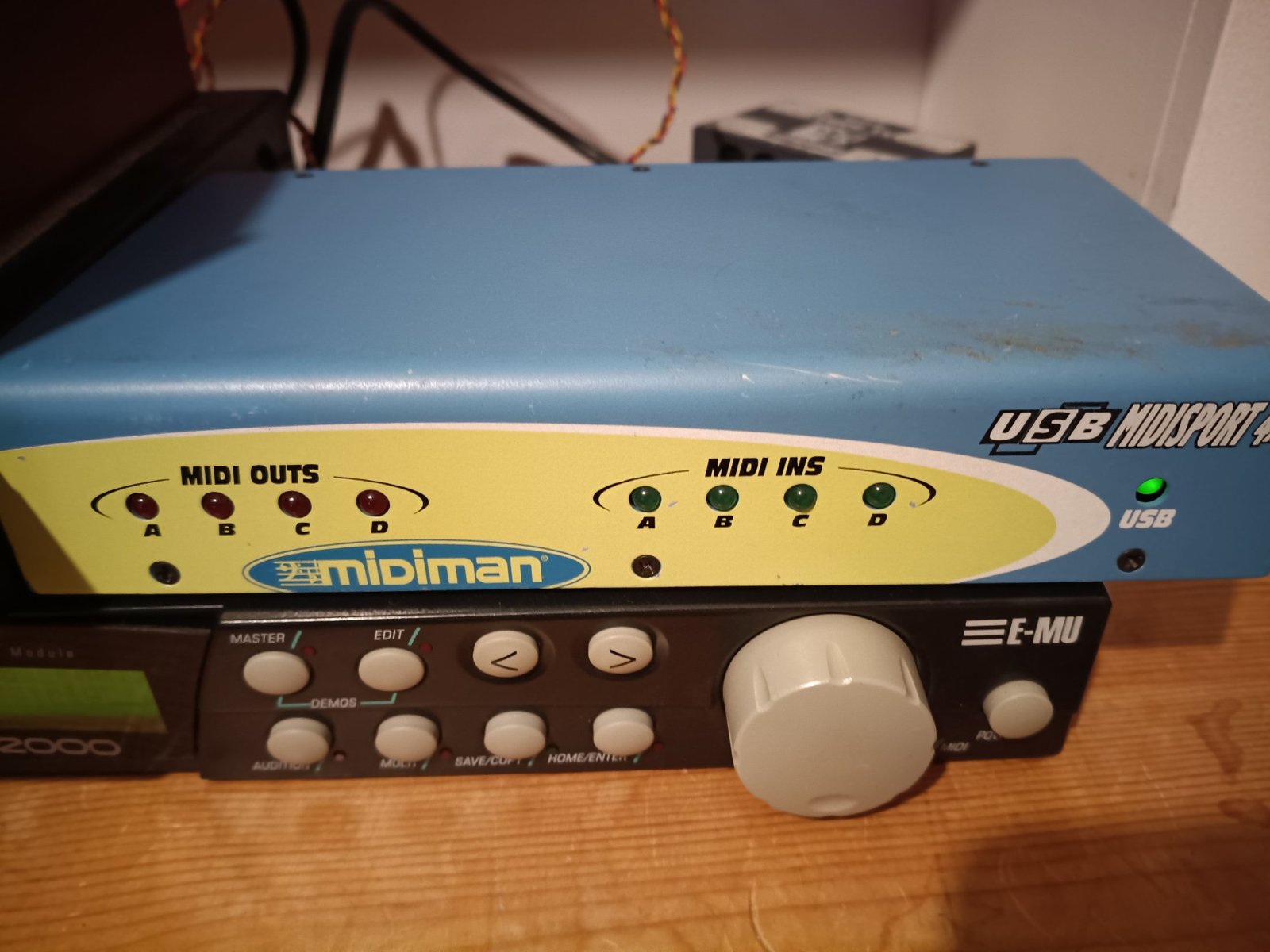
If yours is the later black and green Anniversary Edition, this page probably isn’t for you. That model is class compliant, so Windows 11 should run it with no M-Audio driver at all.
The fix: install the Uno driver
The package is listed for the Uno, the 1×1 and the 2×2 and 4×4 Anniversary Editions, and it was written for Windows 7 and 8. The name puts people off. But the same driver also carries the hardware ID for the original MIDIman 4×4, which is why it picks the old box up.
Tested on
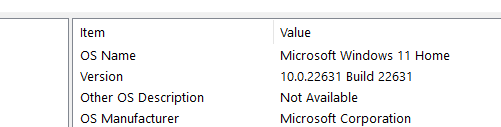
Windows 11 Home, version 10.0.22631 (build 22631), which is the 23H2 release. Check yours by pressing Windows-R, typing msinfo32 and pressing Enter.
- 1Download the driver
Get MIDISport_Installer_6_1_3_Driver_5_10_0_5141.zip from inMusic’s server. That’s M-Audio’s parent company, so it’s the official file, not a third-party driver site. - 2Extract it and run the installer
Unzip the file, then run the installer inside. Accept the Windows prompt asking for administrator permission. - 3Connect the 4×4
Plug it in over USB once the installer has finished. - 4Check it in Device Manager
Right-click the Start button, choose Device Manager and open “Sound, video and game controllers”. The MIDISPORT 4×4 should be listed there with no warning symbol. Its ports should now show up in your DAW.
Credit where it’s due
I got this fix from a thread on r/synthesizers: MIDIman 4×4 M-Audio drivers. Thank you to the original poster for working it out and sharing it.
Forum fixes for old hardware tend to stop working without anyone saying so, and threads get archived. This page is here to say that, as of November 2026, it still works, and to give it a second home.
What I don’t know
This is one interface on one Windows 11 machine, running 23H2. I haven’t tested it on the newer 24H2 or 25H2 releases, and that matters here.
Those newer releases are where Windows 11 has been moving to a new MIDI system, Windows MIDI Services, through 2026. On the Steinberg forums, some people found that old MIDISPORT drivers made Cubase 15 hang while starting up, on the “initialising MIDI” step. Microsoft’s advice there was to uninstall the old driver. That works for the class-compliant models, but it isn’t an option for the original 4×4, which needs this driver to work at all.
So if you install this and your DAW then freezes on MIDI at startup, the driver is the first thing to suspect. I haven’t seen that happen on my machine. If it happens on yours, tell me your Windows build and your DAW, and I’ll add it to this page.
If an older MIDI or audio interface won’t come back to life on a new computer, I can look at it with you over a remote session.
Not sure it’s the same problem? Ask a question first