Case ID: #5231 Log Date: JUN 2025

Solving OBS Audio Input Problems: A DJ’s Streaming Breakthrough

Panic Index // FRUSTRATED
Technical Depth // CONFIGURATION
RESOLVED
Target Environment
macOS + OBS + MegaSeg
Reported Symptom
“OBS receives no audio signal from DJ software despite correct routing via a virtual audio cable (BlackHole).”

The Client’s Initial Request

“Hi, I have set up OBS without an issue and connected my phone as a camera so I can start streaming. I’ve also linked it with Mixcloud and it’s all working fine. The issue I’m having is OBS just isn’t accepting me routing the audio from my DJ software or anything else for that matter. I’ve tried setting up multi-output devices, aggregate devices etc but OBS just doesn’t give me any signal at all. I know I’m not doing anything wrong as if I open another recording software and route the DJ software to that using the same method it does actually work. Can you help with this?”

How I Dealt With the Session:

Upon receiving John’s message, it was clear he was dealing with a common but frustrating audio routing problem for live streaming. Despite his technical expertise and attempts to use virtual cables and aggregate devices, OBS wasn’t receiving audio. This often points to a permissions issue at the operating system level, or a subtle misconfiguration within the streaming software itself.

We quickly set up a remote support session. Once connected, I began by tracing the audio signal path from his DJ software (MegaSeg) through his virtual audio cable (BlackHole) and into OBS. While the application settings appeared correct, a critical macOS security permission was found to be blocking OBS’s ability to capture system audio. Once this was resolved, we moved on to ensuring John could properly monitor his stream’s audio and seamlessly integrate his microphone for commentary. The session transformed a frustrating block into a fully functional streaming setup.

Troubleshooting Steps: Getting Audio into OBS for Streaming

If a user is experiencing problems with OBS not receiving audio from their DJ software, virtual audio cables (like BlackHole), or other applications, despite correct routing within the applications themselves, these steps can help diagnose and resolve the issue:

  • Verify Application-Level Audio Routing:
    • Source Application (e.g., DJ Software): Check the preferences or audio settings of the source application (e.g., MegaSeg). Ensure that the audio output is correctly set to the virtual audio cable (e.g., BlackHole).
    • Virtual Audio Cable: Confirm the virtual audio cable is functioning and selected as the input for the audio source within OBS.
  • Check macOS System Audio Permissions (Crucial Step for OBS):
    • Navigate to System Settings (or System Preferences) on the Mac.
    • Go to Privacy & Security.
    • Scroll down and look for “Screen and System Audio Recording” or similar audio-related permissions.
    • Ensure that OBS (Open Broadcaster Software) is ticked in this list. If it is not, a user will need to tick the box and may be prompted to enter their password to allow the change. A restart of OBS (or sometimes the entire Mac) may be necessary for the change to take effect.
  • Configure OBS Monitoring and Output:
    • Once audio is flowing into OBS, a user may want to hear the stream through their studio speakers or headphones.
    • In OBS, go to the Audio Mixer panel. Click the gear icon next to the relevant audio source (e.g., the one receiving audio from the DJ software).
    • Select “Advanced Audio Properties.”
    • For the desired audio source, change its “Audio Monitoring” setting to “Monitor and Output” or “Monitor (Output to Track).”
    • Next, go to OBS Settings (or Preferences), then click “Audio.”
    • Under the “Advanced” section, locate the “Monitoring Device” setting. Change this from “Default” or “Built-in Output” to the user’s specific audio interface or desired headphone/speaker output.
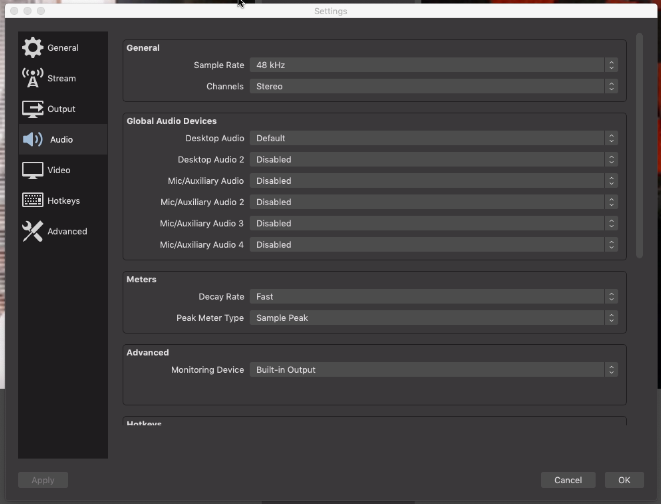
  • Integrate Microphones (Optional, but Recommended for Commentary):
    • If a user wishes to include a microphone for commentary during streaming, consider routing the microphone through the DJ software if it offers features like automatic ducking (which lowers the music volume when the mic is active). This creates a more professional mix.
    • Alternatively, add the microphone as a separate audio input source directly within OBS, and manage its levels manually or with OBS’s built-in compressor/gate effects.

Client’s Satisfaction

John was extremely satisfied by the end of the session. His immediate problem of getting his DJ audio into OBS was fully resolved, and he was able to confidently set up his microphone for seamless live streaming. He was very happy to have his system working exactly as he wanted for his YouTube broadcasts.

Google
Laura Forrest-Hay profile picture
Laura Forrest-Hay
Google star 1Google star 2Google star 3Google star 4Google star 5Trustindex verifies that the original source of the review is Google.
Paul reinstalled all my lost sample libraries, streamlined the storage on my computer so it works faster and fixed my corrupted disk. it took us a couple of sessions and he was friendly and patient throughout. He never made me feel stupid and never over-explained stuff I already knew - in fact he boosted my confidence. Would highly recommend. I've put him on speed dial!
Google
MrMattkitt profile picture
MrMattkitt
Google star 1Google star 2Google star 3Google star 4Google star 5Trustindex verifies that the original source of the review is Google.
Paul was brilliant, listened to the issues I had on Cubase and my home studio, worked methodically through potential problems and sorted everything. Amazing service, down to earth and explained everything so I could understand. I am a very happy song writer once again thanks to Paul! Will be using Paul again in the future and highly recommend. Thanks Paul.
Google
Ciarán Hanna profile picture
Ciarán Hanna
Google star 1Google star 2Google star 3Google star 4Google star 5Trustindex verifies that the original source of the review is Google.
Honestly, if you're in any way stuck in a creative block because of the gear you have, you've more questions than answers about what the best setup should be for your flow, or even if you have very nuanced problems in your DAW/with your gear, the service Paul provides is second to none. Besides being an extremely nice guy, he knows his stuff and takes the time to understand what you want to get out of each session and makes sure all is good to go! Can't recommend him enough!
Google
Trudie Brogan profile picture
Trudie Brogan
Google star 1Google star 2Google star 3Google star 4Google star 5Trustindex verifies that the original source of the review is Google.
Really great service. Paul is so knowledgeable and I learned so much. Totally recommend.
Google
Cottin Ulysse profile picture
Cottin Ulysse
Google star 1Google star 2Google star 3Google star 4Google star 5Trustindex verifies that the original source of the review is Google.
Paul was fantastic, he solved my problem in less than 30mn, and he is a lovely guy. I really recommend him.
Google
Justin Bikram profile picture
Justin Bikram
Google star 1Google star 2Google star 3Google star 4Google star 5Trustindex verifies that the original source of the review is Google.
Paul provided as stellar service, worth every penny. I came to him with a genuine issue that was affecting my Logic Pro 11 album project regarding drums and midi maps and he solved my problem most efficiently. He was patient, courteous, quick thinking and highly knowledgeable. I will certainly consider using the service again and thoroughly recommend Audio Support - Thank you Paul - you are a star :)
Google
josh fulford profile picture
josh fulford
Google star 1Google star 2Google star 3Google star 4Google star 5Trustindex verifies that the original source of the review is Google.
Working in Reaper. Super knowledgeable, friendly, speaks in easy to understand terms. Paul is helping us DAW newbies get in the game. Paul got my lost plugin files working again as well as showed me how to find missing wave files for projects that were loading incorrectly. Keep this man on speed dial.
Google
Richard Grant profile picture
Richard Grant
Google star 1Google star 2Google star 3Google star 4Google star 5Trustindex verifies that the original source of the review is Google.
Paul fixed in around half an hour some midi keyboard/controller problems I have been trying to solve but have had to live with for around two years! He is very knowledgeable and patient and the Any Desk link worked perfectly. I wish I had found his website sooner and wouldn't hesitate to call on his services again. Rick Grant
Google
Paul B profile picture
Paul B
Google star 1Google star 2Google star 3Google star 4Google star 5Trustindex verifies that the original source of the review is Google.
Paul was excellent in helping me diagnose and resolve a problem I had on Logic Pro 12 file issues
Google
William Schrul profile picture
William Schrul
Google star 1Google star 2Google star 3Google star 4Google star 5Trustindex verifies that the original source of the review is Google.
Paul really helped get my Cubase up and running again. He really knows his stuff, and I'll definitely look him up again when I'm stuck. Thanks!!!

No automated tickets, no waiting queues — just one-to-one help from an experienced music technology specialist. I’ll connect to your system remotely, identify the issue, and guide you through the fix.