The short version
My client wanted to record his guitar dry into Pro Tools, then play that recording back out of his Focusrite Scarlett 18i16 into his amp and record the amp with a microphone. He had all the gear. What stopped him was three settings in three different places.
In Focusrite Control 2, the Routing page has to send Playback 3-4 to Output 3-4. In Pro Tools, outputs 3 and 4 don’t appear on a track’s output menu until you create a bus for them in I/O Setup. And physically, a cable has to run from output 3 on the back of the interface to the amp (in his case, to the re-amp box feeding it).
Once those three are right, set the DI track’s output to Out 3-4, arm a microphone track and record. It took us one session, and most of it was getting the order right.
Is this where you’re stuck?
- You want to re-amp a guitar from Pro Tools, but a track’s output menu only offers Out L-R (outputs 1 and 2).
- You’ve plugged into output 3 on the back of your Scarlett and nothing comes out.
- Focusrite Control 2 has a Mixer page and a Routing page and you’re not sure which one matters.
- Your guitar recorded straight into the interface sounds thin, dull or a little fuzzy.
None of this is a fault. It’s how the interface and Pro Tools ship. Each piece is simple once you know it’s there; the confusing part is that all three have to be right before you hear anything.
How we set it up, step by step
The rig: a Focusrite Scarlett 18i16 (4th Gen), Pro Tools, a guitar, a re-amp box feeding a guitar amp, and a microphone in front of the amp. The plan has two passes. First record the guitar dry. Then play that dry track out to the amp and record what the microphone hears.
- 1Plug the guitar into input 1 and switch on Inst
On the 18i16, only inputs 1 and 2 accept a guitar directly. Press Select until input 1 is chosen, then press Inst so it lights green. That switches the jack input to high impedance, which is what a guitar pickup expects. Without it the guitar still records, but it sounds weaker, duller and slightly fuzzy, and that’s the sound you’d be re-amping.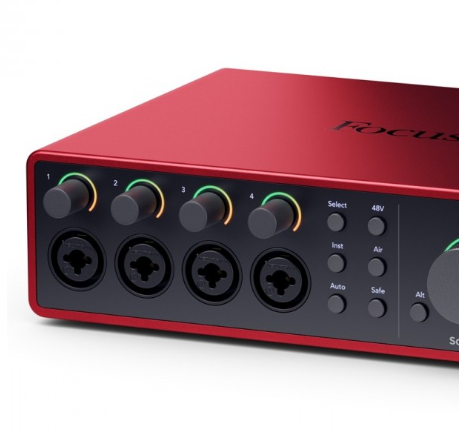
The Select and Inst buttons sit to the right of the four gain knobs. - 2Record the dry guitar
Set an audio track’s input to Input 1 and record a test take. This is the DI track you’ll send to the amp later.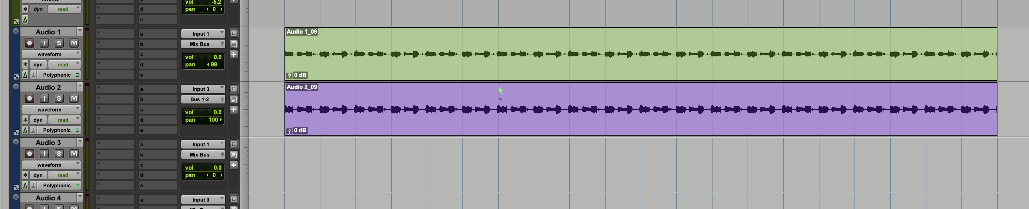
The dry guitar recorded on Audio 1 from Input 1. - 3In Focusrite Control 2, set up the Mixer page
Click Mixer on the left and make sure Mix A is selected at the top. Then:- Mute the Analogue input channels (the blue M buttons). This takes the interface’s own direct monitoring out of the picture, so everything you hear comes through Pro Tools. You switch monitoring on and off in Pro Tools, and you don’t have a live microphone open in the room while you’re still wiring things up.
- Raise Playback 1-2 to 0. That’s Pro Tools’ normal stereo output, the one feeding your speakers and headphones.
- Leave Playback 3-4 down. It’s tempting to raise it, because that’s the pair going to the amp, and on the day we did. It isn’t needed: the amp gets its signal from the Routing page in the next step, not from this mixer. All the Playback 3-4 fader in Mix A does is add the dry guitar to your speakers and headphones, which you don’t want while you’re listening to the amp.
- Leave the headphone outputs alone. They take their feed from Mix A and don’t need changing.
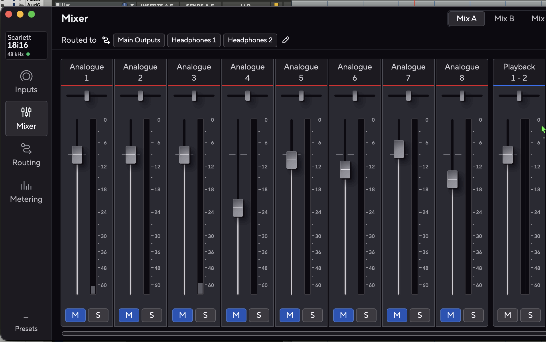
Mix A: Analogue inputs muted, Playback 1-2 up. - 4On the Routing page, send Playback 3-4 to Output 3-4
Click Routing. Under Analogue outputs, set the source for Output 3-4 to Playback 3-4. This sends whatever Pro Tools plays to its outputs 3 and 4 straight to the sockets on the back, without passing through the Mixer page, so nothing on the Mixer page changes what the amp receives. Leave everything else on this page as it is.
On the 18i16, outputs 3 and 4 are labelled Alt, because they can drive a second pair of speakers. In my client’s setup the Alt monitor group had no outputs assigned, which is what left 3 and 4 free for the amp.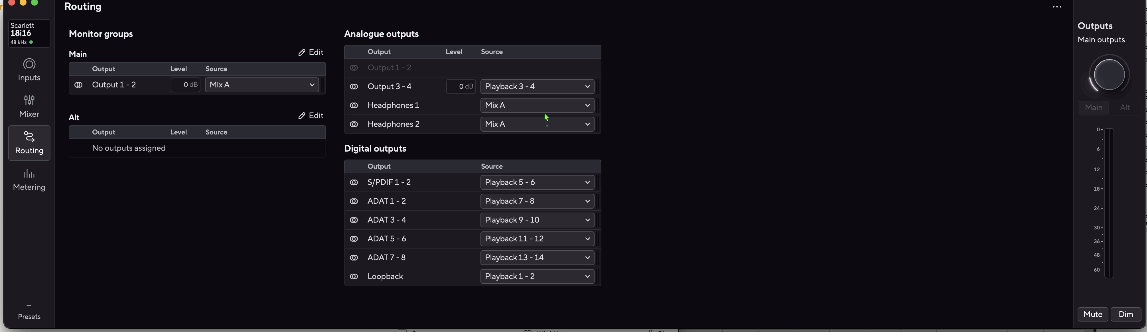
Routing: Output 3-4 takes its source from Playback 3-4. - 5Connect output 3 to the amp
Run an ordinary unbalanced jack cable, the same kind as a guitar lead, from output 3 on the back of the interface to whatever feeds the amp. My client went into a re-amp box first and then on to the amp (more on why below). Output 4 doesn’t need to be connected.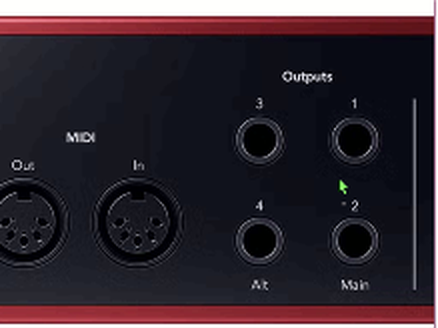
Outputs 3 and 4 (Alt) are on the left of the output block, next to MIDI. - 6In Pro Tools, create a bus for outputs 3-4
The interface is now ready, but Pro Tools won’t offer outputs 3 and 4 until you tell it to. Open Setup > I/O, go to the Bus tab and click New Path. Make a stereo path, name it Out 3-4, then tick its box in the Mapping to Output column and choose Output 3-4.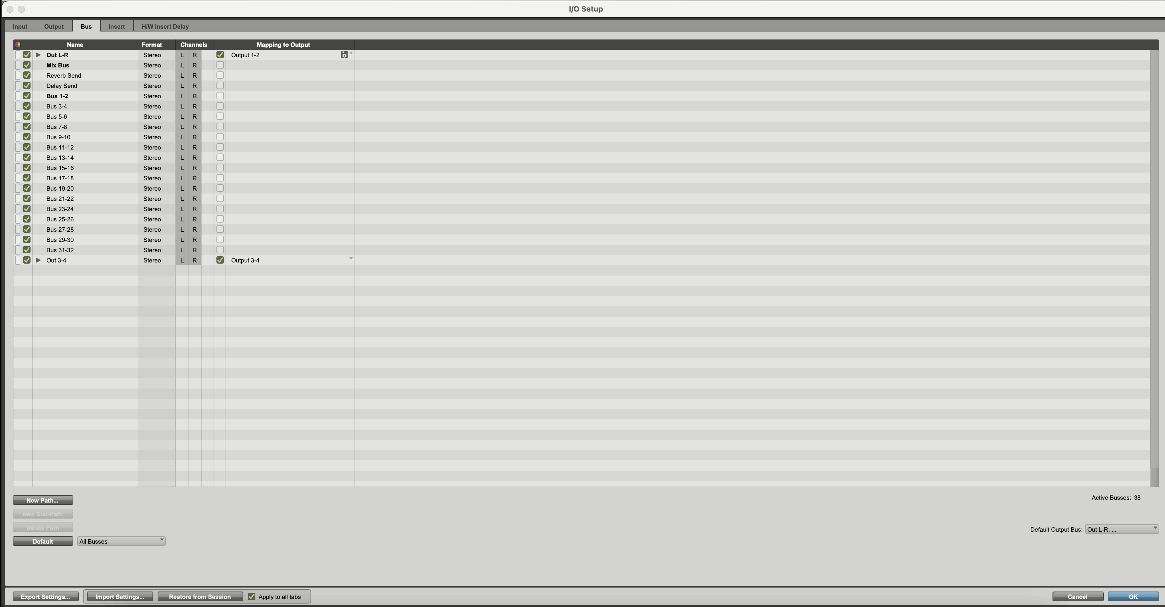
The new Out 3-4 bus at the bottom of the list, mapped to Output 3-4. Export Settings is bottom left. - 7Export the I/O settings
Still in I/O Setup, click Export Settings and save the file somewhere you’ll find it. New sessions open with the last I/O setup you used, so Out 3-4 should be there from now on. Sessions that already exist keep the I/O setup saved inside them, and opening one with a different custom setup can change things. If Out 3-4 goes missing, Import Settings brings it back in a few seconds.
I’d leave Focusrite Control 2 set up this way permanently. Playback 1-2 still goes to your speakers as normal, so ordinary sessions aren’t affected. - 8Send the DI track to Out 3-4
On the dry guitar track, click the output selector (it will say Out L-R, or Mix Bus if your session uses one) and choose output > Out 3-4. The guitar now goes to outputs 3 and 4 instead of your speakers. Only output 3 is cabled, so the right-hand side is simply ignored. Choosing Out 3 (Mono) from the same menu would do the job just as well.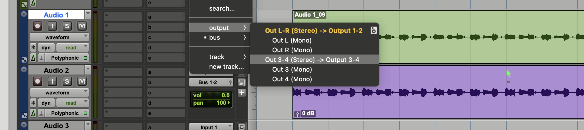
The track output menu, with the new Out 3-4 bus available. - 9Record the amp
My client unplugged the guitar from input 1 and plugged the microphone in there instead. If you do the same, change the input’s settings for a microphone: press Select to choose input 1 and press Inst so it goes from green to white (off), and switch on 48V if it’s a condenser microphone that needs phantom power.
Then make a new track for the microphone (we called it Reamp), set its input to Input 1, arm it, and switch on input monitoring (the green I button) so you can hear the amp through Pro Tools. Because the analogue inputs are muted in Focusrite Control 2, Pro Tools is the only place you’ll hear the microphone. Press record: Pro Tools plays the dry guitar out of output 3, the amp makes the sound, and the microphone records it onto the new track.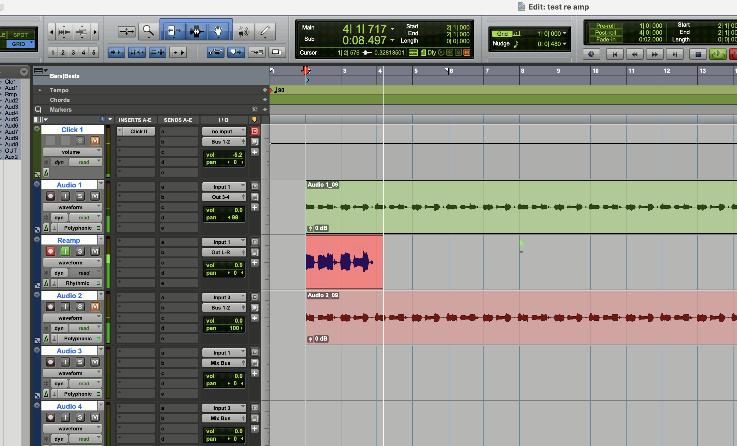
Audio 1 (dry guitar) plays to Out 3-4 while the Reamp track records the microphone.
Nothing coming out of the amp? A quick check
Play the DI track and switch its output back to Out L-R. If you now hear it in your speakers, the recording and Pro Tools are fine, and the block is further along: the Out 3-4 bus mapping in I/O Setup, the Output 3-4 source on Focusrite Control 2’s Routing page, or the cable.
If you don’t hear it in your speakers either, the problem is in the track itself (muted, fader down, or nothing recorded), and it’s worth sorting that first.
Why the re-amp box?
An interface’s line output is much hotter than a guitar pickup and isn’t what a guitar amp’s input is designed for. Plugged straight in, it can sound harsh or overdriven, and you may get hum. A re-amp box sits between the output and the amp and brings the signal back down to the level and impedance of a guitar.
My client already had one in his chain, so the line-level signal never reached his amp directly, and once the sound had left Pro Tools he knew his own gear. If you don’t have one, start with the DI track turned well down in Pro Tools and bring it up slowly.
Common questions
Why can’t I see output 3 and 4 in Pro Tools?
Pro Tools only lists the outputs that have a path in I/O Setup. Create a bus on the Bus tab, map it to Output 3-4, and it appears on every track’s output menu (step 6).
I’ve plugged into output 3 on my Scarlett and get nothing. Why?
Check the Routing page in Focusrite Control 2. Output 3-4 needs Playback 3-4 as its source (step 4). If that’s right, use the quick check above to see which side the problem is on.
Will Pro Tools remember Out 3-4 next time?
For new sessions, yes. Older sessions keep the I/O setup they were saved with, so import your exported settings into those (step 7).
Do I need the Inst button for a guitar?
Yes, when the guitar plugs straight into the interface. It works without it, but the recording is weaker and duller, and that’s what you’ll be sending to the amp. On the 18i16, only inputs 1 and 2 have it.
Why can’t I hear the microphone while I record?
With the analogue inputs muted in Focusrite Control 2, you only hear the microphone through Pro Tools. Switch on input monitoring (the green I button) on the track you’re recording to.
Does this work on other interfaces?
The same three pieces apply to any interface with its own mixer software, such as Universal Audio’s Console, RME’s TotalMix or MOTU’s CueMix: the software has to route the playback channels to the physical outputs, the DAW has to know those outputs exist, and a cable has to connect them to the amp. The names of the pages differ.
If you’re setting up re-amping, extra outputs or any routing between your interface and your DAW, I can set it up with you over a remote session.
Not sure it’s the same problem? Ask a question first